Mahashivratri AI Images generator Prompts 2025. AI photos are really popular these days, especially for festivals like Mahashivratri. Lots of people like to edit and share these photos on social media. This article will show you how to make awesome photos with your name on them, like you’re celebrating with Lord Shiva. We’ll cover how to create these images, including some prompts you can use.
Mahashivratri Special 3D Images
Use to following prompts to generate your own image
PROMPT 1: create high quality realistic image, a 20 year old boy wearing black t-shirt on which his name “Sunny” is written boldly with neon effect, boy is holding a trishul in his hand, background is of very dark, in which aggressive image of lord shiva, environment is ashy.

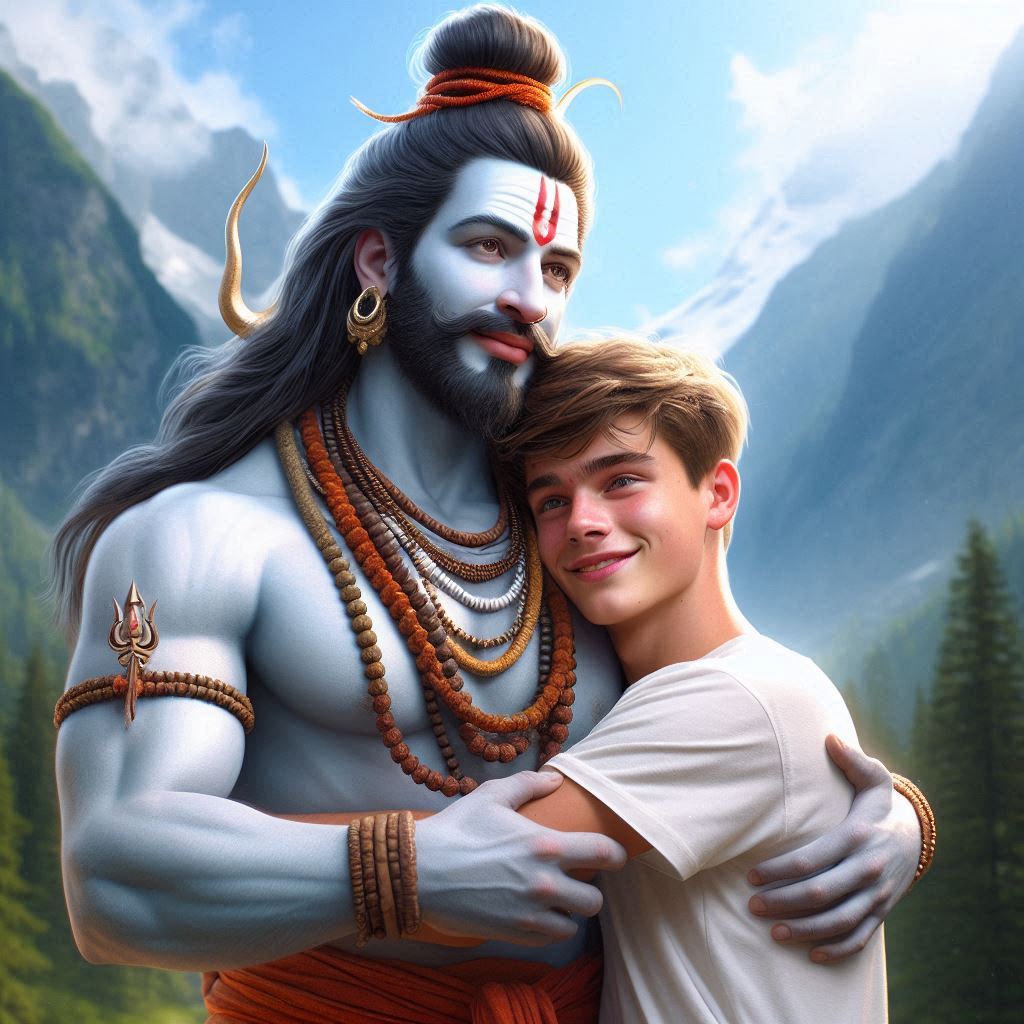
PROMPT 2: create a high quality realistic image, lord Mahadev and a 18 year old teenage boy hugging are Warking with each other, boy is wearing white t-shirt on which his name “Sunny” is written boldly on top, both are happy, environment is mountain, background is of tree, image should ultra clear, hyper realistic, 4k.

Prompt 3: Create high quality realistic image, a 20 year old very cute indian boy is standing and praying infront of aadiyogi statue, people are gathered infront of statue to make it appear as realistic, boy is wearing casual yellow t-shirt with Shiv Tilak on his forehead, on his t-shirt his name “Sunny” should must be written boldly in black, environment is of snow fall, background is of mountain sight, image should ultra clear, hyper realistic
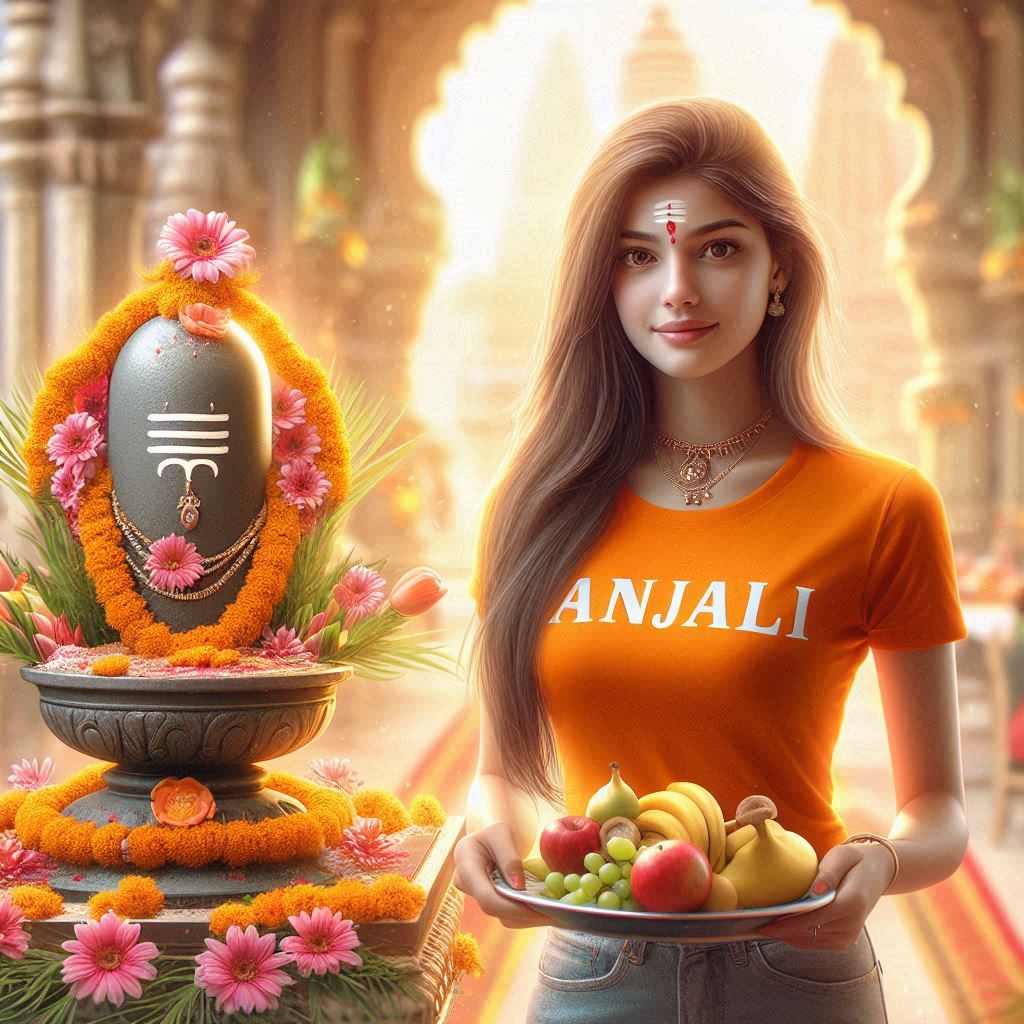
Prompt 4: Create high quality realistic image, a 18 year old Indian girl is standing inside temple and offering a plate of fruits beside a shivlinga adorned with flowers, girl wearing saffron t shirt, her name ” Anjali” is written boldly on his top, environment is gorgeous.
Prompt 5: A realistic 18 year old boy and girl Barefoot couple kneeling, pouring milk from a brass vessel,on a large realistic white neon light Shiva linga, with the yellow neon light name” Sunny & Nikki “clearly written on a stone below, the boy wearing a yellow Bomber jacket and girl Wearing a white saree and gold jewellery, Shiva linga covered with flowers, realistic image, realistic Shiva linga, realistic brass pot, a White glowing, realistic neon light flowers, a snowy mountain in the back

Prompt 6: wedding ceremony of lord shiva and goddess parvati, stage is decorated with flowers, shiv and parvati are exchanging garland with each other, a 20 year boy is watching this marriage, he is wearing red hoodie on which “SUNNY” is written boldly, environment is gorgeous, lotus leaves are raining, background is divine, hyper realistic, ultra clear, high quality 4k image
Prompt 7: an 16 year old indian couple are performing a religious ritual, standing side by side. The boy, wearing an orange t-shirt with the name tag “Sunny” pours water from a decorative brass pot over a shivling which is set in a bowl adorned with marigold flowers. The girl dressed in an orange traditional outfit, has her hands in prayer, looking serene and both are looking so cute, handsome, stylish hair and “Happy Shivratri” written in background wall in red neon light hd images.
What makes these AI photos special? You can add your name to the image! People really like this because it makes the photo feel more personal. You can also create images of yourself at Lord Shiva’s wedding, worshipping him, or even images for couples.
Special 3D Images Ai Photo Generator
We’ve already published a couple of articles about this on our homepage. We wanted to give you even more prompts so you can create your own unique Mahashivratri images. You’ll need these prompts to generate the photos. Follow the instructions below, and you’ll be able to create your image easily.
How To Create Mahashivratri Special 3D Images Ai Photo Generator
Find a Prompt: Locate the AI image generation prompts mentioned on this article.
Copy the Prompt: Select and copy the text of the desired prompt.
Go to Bing Image Generator: Click on this link. This will open the Microsoft image generation website in a new tab or window.
Paste the Prompt: On the Microsoft image generation website, find the text box and paste the copied prompt into it.
Customize (Optional): Within the pasted prompt, you should be able to modify the name and gender as needed.
Click “Create”: Click the “Create” button on the Microsoft website to begin the image generation process.
View Generated Images: The website will generate four different images based on your prompt.
Download an Image:
- Open the desired image.
- Click the three dots (usually an ellipsis icon) associated with the image.
- Select the “Download” option.
Conclusion
We hope this article has been helpful! If you have any questions or need help, please let us know.