
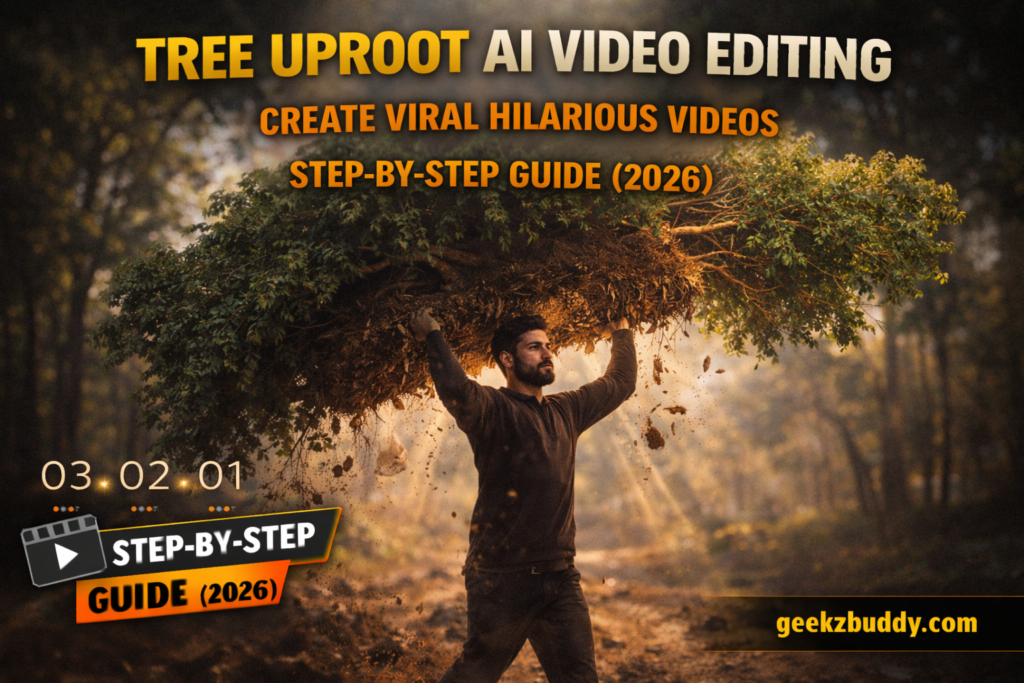
Tree Uproot AI Video Editing
The latest viral sensation sweeping across social media shows people effortlessly uprooting massive trees and carrying them away like they’re lifting a feather. These hilarious and surprisingly realistic AI-generated videos are racking up millions of views on Instagram Reels, TikTok, and YouTube Shorts. If you’ve been wondering how to create your own tree uprooting video, you’re in the right place.
Today, we’ll show you exactly how to generate your own viral tree uproot AI video using Google Flow AI. The best part? You only need a single photo of yourself standing next to a tree, and the AI will do all the heavy lifting—literally! This comprehensive tutorial will walk you through every step of the process, from selecting the perfect photo to generating your final video.
What Is Tree Uproot AI Video Editing?
Tree uproot AI video editing is the latest trending technique where artificial intelligence transforms a simple photo into a dynamic video showing someone pulling a massive tree from the ground and carrying it away. These videos have become incredibly popular because they combine:
- Humorous unexpected moments that catch viewers off guard
- Hyper-realistic effects that make impossible scenarios look believable
- Easy creation process requiring just one photo
- Shareable content perfect for social media virality
- Creative flexibility allowing personal customization
The trend started when someone shared a video of uprooting a century-old banyan tree, putting it on their shoulders, and running off with it. The video looked so authentic that viewers couldn’t believe it was AI-generated, leading to an explosion of similar content across platforms.
Understanding the Tree Uproot Video Effect
What Happens in These Videos?
The typical tree uproot AI video follows this sequence:
- Opening scene: A person stands casually next to a large tree
- Ground reaction: The earth begins to crack and shake
- Uprooting action: The person grips the tree base with both hands
- Lifting sequence: The tree slowly comes free with roots dangling
- Carrying moment: The person hoists the tree onto their shoulders
- Walking away: They carry the massive tree and walk off
- Realistic details: Soil falls, muscles flex, clothing moves naturally
Why These Videos Look So Realistic
The magic lies in AI’s ability to:
- Simulate realistic physics and gravity
- Render natural body movements and muscle tension
- Create authentic lighting and shadows
- Generate convincing debris and soil particles
- Maintain proper scale and perspective
- Add subtle environmental details like wind effects
Why Is Tree Uproot AI Video Editing Going Viral?
The Perfect Storm of Virality
This trend has exploded across social media for several compelling reasons:
1. Unexpected Humor
The absurdity of someone casually uprooting a 100-year-old tree creates instant comedic value. Viewers are simultaneously amazed and amused, making it highly shareable.
2. Accessible Creation
Unlike traditional special effects that require:
- Professional video editing software
- Green screen equipment
- CGI expertise
- Hours of post-production work
Tree uproot AI videos need only:
- One photo
- An AI tool
- A good prompt
- A few minutes of waiting
3. Creative Expression
People love adding their own twist by:
- Using different tree sizes
- Incorporating unique locations
- Adding personal style and humor
- Creating series or storylines
4. Social Proof
When people see these videos getting millions of views, they’re motivated to create their own versions, fueling the trend’s momentum.
The Viral Cycle
The tree uproot trend follows a typical viral pattern:
- Original creator posts unique content
- Video receives millions of views
- Others discover the technique
- Mass creation of similar content begins
- Trend spreads across multiple platforms
- Variations and innovations emerge
Google Flow AI: The Tool Behind the Magic
What Is Google Flow AI?
Google Flow AI is a sophisticated artificial intelligence platform designed specifically for creating realistic video content from static images and text prompts. This cutting-edge tool represents the forefront of AI video generation technology.
Key Capabilities:
- Photo-to-video transformation with realistic animation
- Physics simulation for natural movement and gravity
- Environmental effects including debris, dust, and particle physics
- Lighting and shadow rendering that matches real-world conditions
- Natural motion generation including breathing, muscle movement, and clothing physics
Why Flow AI Excels at Tree Videos
Flow AI is particularly effective for tree uproot videos because it understands:
- Complex object physics (how trees should move)
- Natural human body mechanics (proper lifting motion)
- Environmental interactions (soil breaking, roots emerging)
- Scale relationships (person-to-tree proportions)
- Realistic weight distribution and balance
The tool’s advanced algorithms ensure that every frame looks convincing, from the initial ground cracking to the final walking sequence.
How to Select the Perfect Photo for Your Video
Essential Photo Requirements
To create the most realistic tree uproot video, your photo should include:
1. Clear Subject Positioning
- You standing directly beside a large tree
- Full body visible from head to toe
- Natural, relaxed stance
- Facing toward or slightly angled to the tree
2. Tree Characteristics
- Large, mature tree (not a sapling)
- Clearly visible trunk and base
- Preferably a notable tree like a banyan, oak, or pine
- Tree fully in frame or mostly visible
3. Technical Quality
- High resolution (at least 1080p)
- Good lighting conditions
- Sharp focus, not blurry
- Minimal background clutter
- Clear foreground-background separation
4. Composition Elements
- Ground/soil visible around tree base
- Some sky visible for depth
- Natural outdoor setting
- Adequate space around subject and tree
Photo Taking Tips
Lighting Recommendations:
- Shoot during golden hour (early morning or late afternoon)
- Avoid harsh midday shadows
- Ensure even illumination on you and the tree
- Natural sunlight works best
Camera Settings:
- Use portrait mode if available
- Enable HDR for better dynamic range
- Focus on yourself while keeping tree sharp
- Take multiple shots for options
Location Scouting:
- Parks with large, mature trees
- Your yard if you have substantial trees
- Public gardens or nature reserves
- Areas with impressive, photogenic trees
Creative Alternatives to Trees
While trees are the classic choice, you can get creative with other objects:
Heavy Objects:
- Houses or small buildings
- Large vehicles (cars, trucks)
- Massive boulders or rocks
- Industrial equipment
Unexpected Items:
- Giant statues or sculptures
- Shipping containers
- Large pieces of furniture
- Architectural elements
The key is choosing something that looks impossibly heavy, making the lifting action humorous and impressive.
The Complete AI Video Prompt
Use this exact prompt for optimal results
A highly realistic cinematic animation using my uploaded photo as the source, focus on the same tree visible in the photo. The main subject in the photo stands beside the tree. The ground begins to crack and shake slightly, soil particles breaking apart. With natural body motion, smooth breathing and realistic muscle movement, the subject pulls the tree from the ground using both hands. Roots detach gradually with dirt and broken soil falling down. The subject lifts the tree above shoulder height and walks forward, carrying it naturally. Smooth and physically accurate movements, subtle hair and cloth motion, shallow depth of field, camera tracking, soft sunlight, natural shadows, 4k hyper-realistic cinematic style, no exaggerated expressions.
Step-by-Step Video Generation Guide
Prerequisites Checklist
Before you begin, ensure you have:
- ✅ A quality photo of yourself next to a large tree
- ✅ Email address for Flow AI account registration
- ✅ Stable internet connection
- ✅ 10-15 minutes for video generation
- ✅ The AI prompt copied (use button above)
Complete Generation Process
Follow these detailed steps to create your tree uproot AI video:
Step 1: Access Google Flow AI Platform
- Navigate to Flow AI website
- Create an account if you’re a first-time user
- Log in using your email address
- Verify your email if prompted
- Complete any initial setup requirements
Step 2: Create Your Video Project
- Once logged in, locate the dashboard
- Click the “Create Project” button prominently displayed
- Select “New Video Project” from the options
- Choose your preferred project settings
- Name your project (e.g., “Tree Uproot Video”)
Step 3: Configure Project Settings
- Click the “Text” option in the bottom dashboard menu
- Select “Frame” as your starting point
- Choose “Video” as your output format
- Set video resolution to 4K for best quality
- Adjust duration settings if available (typically auto-set)
Step 4: Upload Your Photo
- Look for the “+” icon or “Add Image” button
- Click to open your file browser
- Navigate to your tree photo location
- Select the photo you want to use
- Wait for upload completion
- Verify the photo displays correctly in the preview
Step 5: Input the AI Prompt
- Locate the text input box below your uploaded image
- Click inside the box to activate the cursor
- Copy the complete prompt from here
- Paste the prompt into the text box (Ctrl+V or Cmd+V)
- Double-check that the entire prompt is present
- Review for any accidental line breaks or formatting issues
Step 6: Generate Your Video
- Review your photo and prompt one final time
- Click the “Generate” button
- Wait for the AI to process (typically 5-15 minutes)
- Do not close the browser window during generation
- Monitor progress if a progress bar is displayed
Step 7: Download and Review
- Once generation completes, preview your video
- Check for quality and realism
- Click “Download” to save to your device
- Choose your preferred video format (MP4 recommended)
- Save to an easily accessible location
- Review the final output thoroughly
Generation Time Expectations
Typical Processing Times:
- Simple videos: 5-10 minutes
- Complex videos: 10-20 minutes
- Peak usage times: May take longer
- High-resolution (4K): Additional processing time
Tips for Faster Generation:
- Generate during off-peak hours (early morning/late night)
- Ensure stable, fast internet connection
- Use appropriately sized images (not unnecessarily large)
- Close unnecessary browser tabs to free up resources
Understanding the Prompt Breakdown
Why This Prompt Is Effective
Let’s analyze each component of the tree uproot prompt:
“A highly realistic cinematic animation using my uploaded photo as the source”
- Sets the quality standard immediately
- Establishes that your photo is the foundation
- Requests cinematic-level output
“Focus on the same tree visible in the photo”
- Ensures AI targets the correct tree
- Maintains consistency with your original image
- Prevents AI from generating a different tree
“The main subject in the photo stands beside the tree”
- Identifies you as the primary actor
- Establishes spatial relationship
- Provides context for the action
“The ground begins to crack and shake slightly, soil particles breaking apart”
- Adds realistic environmental feedback
- Creates anticipation for the main action
- Simulates natural physics of tree removal
“With natural body motion, smooth breathing and realistic muscle movement”
- Ensures human movements look authentic
- Adds subtle life-like details
- Prevents robotic or stiff animation
“The subject pulls the tree from the ground using both hands”
- Describes the core action clearly
- Specifies the method (both hands)
- Guides AI on the lifting technique
“Roots detach gradually with dirt and broken soil falling down”
- Adds crucial realistic details
- Shows proper physics of tree extraction
- Enhances believability with falling debris
“The subject lifts the tree above shoulder height and walks forward”
- Continues the action sequence
- Specifies height for dramatic effect
- Adds movement beyond just lifting
“Smooth and physically accurate movements, subtle hair and cloth motion”
- Emphasizes natural physics throughout
- Adds secondary motion for realism
- Prevents jerky or unnatural animation
“Shallow depth of field, camera tracking, soft sunlight, natural shadows”
- Professional cinematography elements
- Creates depth and visual interest
- Ensures proper lighting and shadows
“4k hyper-realistic cinematic style, no exaggerated expressions”
- Sets final quality requirements
- Specifies resolution
- Prevents cartoon-like or exaggerated results
Troubleshooting Common Issues
Problem: Video Doesn’t Look Realistic
Possible Solutions:
- Ensure your base photo is high quality and well-lit
- Verify the entire prompt was copied correctly
- Try generating multiple times for best result
- Check that your photo clearly shows both you and the tree
- Adjust lighting conditions in your source photo
Problem: Tree Movement Looks Unnatural
Fixes to Try:
- Make sure the tree is fully visible in your photo
- Use a photo with clearer tree definition
- Try with a different tree (larger, more distinctive)
- Ensure good contrast between tree and background
- Regenerate with slight prompt modifications
Problem: Your Character Movements Seem Off
Improvement Strategies:
- Use a photo where you’re standing naturally
- Ensure your full body is visible
- Try different poses in your source image
- Make sure lighting on you is even
- Consider retaking the photo with better positioning
Problem: Ground Effects Aren’t Convincing
Solutions:
- Choose photos with clearly visible ground/soil
- Avoid photos with paved surfaces
- Ensure good visibility of the area around tree base
- Try photos with natural, earthy surfaces
- Look for locations with visible roots or natural ground
Problem: Slow or Failed Generation
Troubleshooting Steps:
- Check your internet connection stability
- Try generating during off-peak hours
- Clear browser cache and cookies
- Use a different browser (Chrome recommended)
- Verify your Flow AI account status
- Contact Flow AI support if issues persist
Problem: Video Quality Lower Than Expected
Quality Improvement Tips:
- Always upload the highest resolution photo possible
- Ensure “4K” is specified in generation settings
- Use photos taken in good natural light
- Avoid heavily compressed or low-quality images
- Download in the highest available quality format
Customizing Your Tree Uproot Video
Prompt Modifications for Different Effects
For Faster, More Dynamic Action:
...the subject quickly grips the base and rapidly pulls the tree free with explosive force, dirt and debris spraying outward...For Slow-Motion Dramatic Effect:
...in ultra-slow motion, the subject carefully wraps their hands around the trunk, gradually increasing force as the tree slowly releases from the earth...For Comedic Exaggeration:
...the subject casually grabs the tree with one hand, effortlessly yanking it free as if pulling a weed, then nonchalantly walks away...For Superhero Style:
...with superhuman strength, the subject's muscles tense, energy radiating as they powerfully rip the massive tree from the ground in one swift motion...Adding Your Creative Touch
Post-Generation Enhancements:
- Add sound effects (tree cracking, soil falling)
- Include background music (epic or comedic)
- Apply color grading for different moods
- Add text overlays or captions
- Create before/after comparison shots
- Incorporate slow-motion sections
Series Ideas:
- Progressive size challenge (small tree to massive tree)
- Different locations around your city
- Team effort with friends
- Seasonal variations (different trees through seasons)
- “Tree collector” narrative series
Maximizing Social Media Impact
Platform-Specific Optimization
Instagram Reels:
- Keep videos 15-30 seconds for best engagement
- Use vertical 9:16 format
- Add trending audio tracks
- Include 3-5 relevant hashtags
- Post during peak hours (7-9 PM local time)
- Share to your Story immediately after posting
TikTok:
- Leverage trending sounds and effects
- Add text captions explaining what viewers are seeing
- Use relevant TikTok-specific hashtags
- Engage with comments quickly
- Create duets or stitches with other tree videos
- Post consistently for algorithm favor
YouTube Shorts:
- Create compelling thumbnails even for Shorts
- Write descriptive titles with keywords
- Add video to relevant playlists
- Pin a comment explaining the AI process
- Respond to top comments
- Cross-promote longer tutorial content
Facebook:
- Share with engaging caption asking questions
- Tag friends for broader reach
- Post in relevant groups (with permission)
- Use Facebook’s native video upload
- Engage with comments and shares
- Consider boosting top-performing posts
Hashtag Strategy for Tree Uproot Videos
Primary Hashtags:
- #TreeUproot
- #AIVideo
- #ViralVideo
- #AIVideoEditing
- #FlowAI
- #VideoEditing
- #FunnyVideo
Secondary Hashtags:
- #AIArt
- #ContentCreator
- #ViralTrend
- #VideoMagic
- #CreativeVideo
- #TrendingNow
- #SuperStrength
Niche Hashtags:
- #TreeLifting
- #AIAnimation
- #VideoGeneration
- #FlowAIVideo
- #RealisticAI
- #VideoPrompt
Caption Ideas That Drive Engagement
Humorous Approach:
“Just casually stealing this 100-year-old tree from the park 🌳💪 Don’t worry, I’ll bring it back… maybe 😂 #TreeUproot #AIVideo”
Educational Angle:
“Mind blown 🤯 This was created with just ONE photo and AI! The future of video editing is insane. Want to learn how? #AIVideoEditing #FlowAI”
Challenge Format:
“I uprooted a tree with my bare hands. Your turn! Tag someone who should try this challenge 👇 #TreeChallenge #ViralVideo”
Behind-the-Scenes:
From one photo to this viral video in 10 minutes using AI ✨ Technology is wild! #AIVideo #ContentCreator”
Best Practices for Viral Success
Content Strategy
1. Consistency Is Key
- Post tree uproot videos regularly
- Establish a posting schedule
- Maintain quality standards across all content
- Build anticipation for next videos
2. Engage With Your Audience
- Respond to comments within first hour
- Ask questions in your captions
- Create polls and interactive content
- Acknowledge top fans and commenters
3. Ride the Trend Wave
- Create your video while trend is hot
- Put unique spin on the format
- Combine with other trending elements
- Stay updated on evolving variations
4. Quality Over Quantity
- Don’t sacrifice quality for speed
- Choose best generations before posting
- Ensure each video adds value
- Maintain consistent production standards
Analytics and Improvement
Track These Metrics:
- View count and watch time
- Engagement rate (likes, comments, shares)
- Follower growth from specific videos
- Peak engagement times
- Audience demographics
Use Insights to Improve:
- Double down on what works
- Test different posting times
- Experiment with various trees/locations
- Try different caption styles
- A/B test hashtag combinations
Legal and Safety Considerations
Copyright and Usage Rights
AI-Generated Content:
- Verify Flow AI’s terms regarding content ownership
- Understand commercial use permissions
- Respect any attribution requirements
- Follow platform-specific AI content policies
Music and Audio:
- Use royalty-free music or licensed tracks
- Respect platform music libraries
- Credit original audio creators when required
- Avoid copyrighted songs without permission
Location and Property:
- Ensure you have right to photograph locations
- Respect private property
- Follow park and public space rules
- Don’t create misleading content about protected trees
Safety and Ethics
Content Responsibility:
- Label content as AI-generated when required
- Don’t create misleading or deceptive content
- Avoid content that could cause harm if replicated
- Consider environmental messaging
Environmental Considerations:
- Use content to promote tree conservation
- Add educational captions about tree importance
- Partner with environmental organizations
- Donate portion of revenue to tree-planting initiatives
Advanced Techniques for Experienced Creators
Multi-Clip Narratives
Create more complex stories by:
- Generating multiple tree uproot clips
- Building sequential storylines
- Creating “tree collection” series
- Developing character arcs across videos
Combining AI with Traditional Editing
Hybrid Workflow:
- Generate AI tree uproot base video
- Import into professional editing software
- Add particle effects and enhancements
- Layer in custom sound design
- Apply professional color grading
- Integrate practical footage elements
Monetization Opportunities
Revenue Streams:
- YouTube AdSense on compilation videos
- Sponsored content with brands
- Selling custom video generation services
- Creating tutorial courses
- Offering prompt packages
- Building paid community memberships
Building a Personal Brand
Establish Authority:
- Become the go-to creator for tree videos
- Share behind-the-scenes process
- Create comprehensive tutorials
- Collaborate with other AI creators
- Speak at creator events or webinars
The Future of AI Video Editing
Emerging Trends to Watch
Technology Evolution:
- Faster generation times (real-time AI video)
- Higher resolution outputs (8K and beyond)
- Better physics simulation
- More intuitive prompt interfaces
- Mobile-first AI video apps
Creative Possibilities:
- Multi-object interactions
- Complex scene compositions
- Dynamic weather effects
- Crowd generation
- Seamless blending with live footage
Industry Impact:
- Democratization of video production
- New career opportunities in AI prompting
- Shift in content creation economics
- Evolution of social media algorithms
- Changing viewer expectations
Frequently Asked Questions
How long does it take to generate a tree uproot video?
Most tree uproot videos generate in 5-15 minutes depending on Flow AI server load, your account tier, and chosen quality settings. Complex scenes or 4K resolution may take longer.
Can I use any type of tree in my photo?
Yes! Any tree works, but larger, more distinctive trees create more impressive results. Mature trees with visible trunk and roots work best. Banyan trees, oaks, pines, and other substantial trees are ideal.
Do I need video editing experience?
No editing experience required for basic generation! Simply upload your photo and use the provided prompt. Optional enhancements like sound effects or color grading require basic editing skills.
Is Google Flow AI free to use?
Flow AI offers both free and paid tiers. Free accounts typically have limitations on generation quantity or resolution. Check their website for current pricing and features.
Can I monetize these AI-generated videos?
Generally yes, but always check Flow AI’s terms of service and the specific platform’s monetization policies regarding AI content. Proper disclosure of AI generation is typically required.
What if the tree doesn’t lift realistically?
Try these solutions: ensure your photo has good lighting, the tree is clearly visible and substantial in size, regenerate for a better result, or modify the prompt slightly to emphasize natural physics.
Can I create videos of lifting other objects?
Absolutely! The prompt can be modified to lift houses, cars, boulders, or any heavy object. Just change “tree” to your desired object and adjust related details (roots become foundation, etc.).
How do I make my video stand out from others?
Use unique locations, choose distinctive trees, add creative editing touches, develop a consistent style, create series with narratives, and engage authentically with your audience.
What photo resolution should I use?
Use the highest resolution possible, ideally 1080p or higher. Higher quality input photos generate more realistic and detailed AI videos. Avoid low-resolution or heavily compressed images.
Can I generate multiple videos from the same photo?
Yes! You can generate multiple variations from the same photo. Each generation may produce slightly different results, allowing you to choose the best one.
Additional Resources and Tools
Recommended Editing Software
For Beginners:
- CapCut (free, mobile and desktop)
- iMovie (free for Mac users)
- DaVinci Resolve (free version available)
For Intermediate:
- Filmora (affordable, user-friendly)
- Adobe Premiere Rush (simplified Premiere)
- VSDC (free Windows editor)
For Advanced:
- Adobe Premiere Pro (industry standard)
- Final Cut Pro (professional Mac editing)
- DaVinci Resolve Studio (color grading powerhouse)
Community and Learning
Join Creator Communities:
- Reddit: r/AIVideo, r/VideoEditing
- Discord: AI Video Creators servers
- Facebook: AI Content Creation groups
- Twitter: Follow #AIVideo creators
Continue Learning:
- Flow AI official tutorials
- YouTube creator channels
- Online courses on AI video generation
- Prompt engineering guides
Conclusion: Start Creating Your Viral Tree Videos Today
Tree uproot AI video editing represents an exciting convergence of technology, creativity, and viral potential. With Google Flow AI and the comprehensive prompt provided in this guide, you have everything you need to create stunning, shareable content that can captivate millions.
Your Action Plan:
- ✅ Take your photo – Find a large tree and capture the perfect shot
- ✅ Copy the prompt – Use the one-click button above
- ✅ Sign up for Flow AI – Create your account and log in
- ✅ Generate your video – Follow the step-by-step process
- ✅ Share strategically – Post with optimized hashtags and captions
- ✅ Engage and iterate – Respond to comments and refine your approach
The democratization of video creation through AI tools like Flow AI is transforming the creator economy. Those who master these techniques now will be positioned as leaders in the next generation of content creation. Don’t just watch others go viral—create your own viral sensation with tree uproot AI videos.
Remember, every viral creator started with their first video. Your tree uproot video could be the one that launches your journey to social media success. The tools are here, the trend is hot, and the audience is waiting. All you need to do is take that photo, copy the prompt, and hit generate.
Ready to uproot your first tree? 🌳 Grab your phone, find that perfect tree, and start creating! Share your results and tag fellow creators who need to see this. Let’s see your strength in action!
Got questions or want to share your tree uproot masterpiece? Drop a comment below and join our growing community of AI video creators!
Pro Tip: Save this article for future reference. Bookmark it, share it with friends, and return whenever you need prompt inspiration or troubleshooting help. Happy creating! 🎬✨